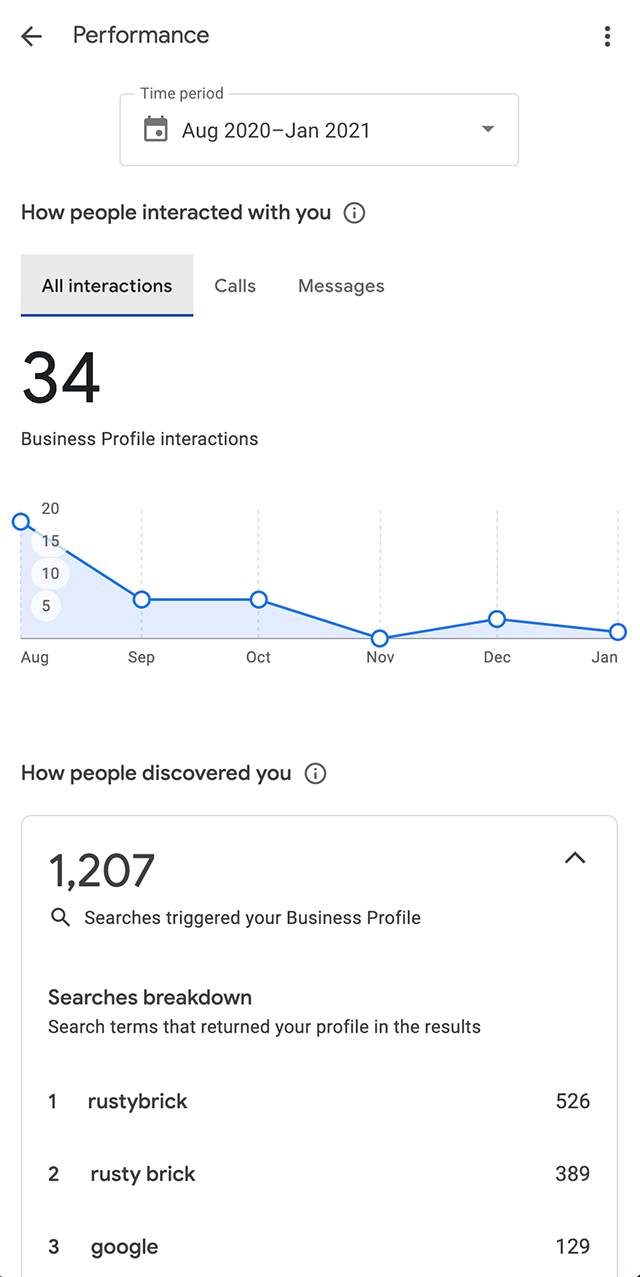
Google My Business, now called Google Business Profile, is essential for managing how your business appears on Google Search and Maps.
Sometimes, users make edits to their profile but find that changes cannot be saved. This is a common frustration, but it usually happens for specific reasons. Understanding these reasons can help fix the problem quickly and prevent repeated errors.
Common Reasons Changes Fail to Save
Several factors can prevent edits from being saved in a Google Business Profile:
1. Pending Verification:
If the business is not fully verified, some edits may be restricted. Google wants to ensure that only authorized owners make changes.
2. Multiple Users Editing:
Profiles with multiple managers can conflict if two people edit at the same time. Changes may not save if Google detects simultaneous edits.
3. Policy Violations:
Google reviews profile edits for compliance with its guidelines. Certain keywords, prohibited content, or inaccurate information can block updates.
4. Technical or Browser Issues:
Outdated browsers, cached data, or slow internet connections can cause the save button to fail. Extensions or ad blockers may also interfere.
5. Account Limitations:
Businesses flagged for unusual activity or under temporary restrictions may lose the ability to update information until the issue is resolved.
Solutions to Fix Unsaved Edits
Verify Your Business:
Make sure your Google Business Profile is fully verified. Verification confirms ownership and unlocks full editing privileges.
Check User Roles:
Confirm that you have “Owner” access. Only owners can make some critical changes, like business name or category.
Clear Cache and Try Different Browsers:
Refreshing your browser or clearing cached data often fixes technical issues. Trying a different browser can bypass extensions causing conflicts.
Follow Google Guidelines:
Ensure all edits comply with Google’s business profile policies. Avoid adding promotional phrases, unnecessary keywords, or misleading content.
Avoid Simultaneous Edits:
If multiple managers access the profile, coordinate so only one person makes changes at a time.
Wait for System Updates:
Sometimes changes fail because Google is processing updates. Waiting a few hours and retrying can resolve the problem.
Best Practices for Smooth Editing
Keep profile details consistent with your website and official business documents. Accurate information reduces the risk of rejection.
Update one section at a time instead of bulk edits. This helps Google process changes without errors.
Always monitor the profile for notifications from Google about pending reviews or flags that might block edits.
Conclusion
Not being able to save changes in your Google Business Profile is usually due to verification issues, conflicting edits, policy restrictions, or technical problems.
By verifying your business, following Google guidelines, checking user roles, and addressing browser or network issues, most problems can be solved quickly.
Maintaining an accurate, fully optimized profile ensures that your business remains visible, trustworthy, and engaging for customers searching on Google.
Proper management of your Google Business Profile directly impacts search visibility and local SEO performance, making it a critical tool for every business.