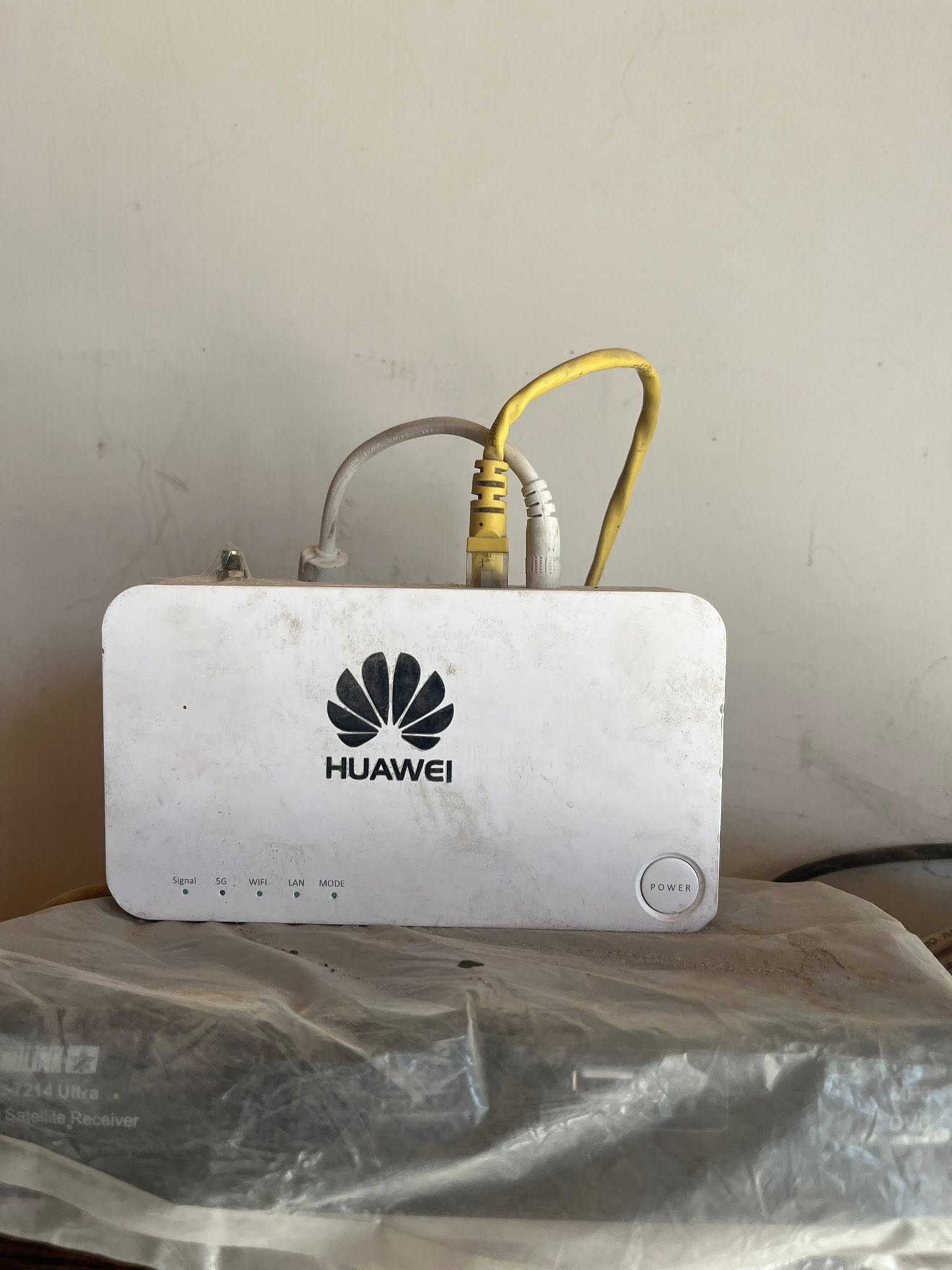
First thing. This isn’t just a “router.” The Aurora C150 WiFi Router is a cellular modem + router combo. That matters.
If you treat it like a normal PTCL or fiber router, you’ll get stuck fast.
Inside this box:
- SIM-based internet (like your phone)
- Built-in modem (handles 4G / “5G+” depending on network)
- Dual-band WiFi (2.4GHz + 5GHz)
- Basic routing features (DHCP, NAT, firewall)
Most issues people hit? They come from confusing the SIM side with the WiFi side.
The #1 Reason People Struggle With This Router
They set up WiFi perfectly… but the internet itself isn’t working.
Why?
Because WiFi ≠ Internet.
WiFi is just the local signal. The real connection is:
SIM → Mobile Network → Internet → Router → WiFi
If the SIM part fails, everything looks “connected” but nothing loads.
Quick Setup (The Way That Actually Works)
Forget fancy settings for now. Get it working first.
What you need:
- Active SIM (with data package)
- Router powered on
- A phone or laptop
Do this:
- Insert SIM properly
Sounds obvious. But I’ve seen upside-down SIMs more times than I care to admit. - Power it on and wait 2–3 minutes
Don’t rush this. It needs time to register on the network. - Connect to WiFi
Default SSID and password are on the back label. - Open browser and go to:
192.168.1.1(Sometimes 192.168.0.1 — check label) - Login (usually admin/admin)
- Go to Network / Mobile Settings
- Check SIM status
- If needed, manually enter APN
Critical step:
👉 Set the correct APN for your network
- Jazz:
jazzconnect.mobilinkworld.com - Zong:
zonginternet - Telenor:
internet - Ufone:
ufone.internet
No APN = no internet. Simple.
Dual Band WiFi — What Actually Matters
The C150 gives you:
- 2.4GHz → longer range, slower
- 5GHz → faster, shorter range
Most people mess this up.
Use this rule:
| Situation | Use |
|---|---|
| Far from router | 2.4GHz |
| Same room | 5GHz |
| Walls in between | 2.4GHz |
| Gaming / downloads | 5GHz |
If your speed is bad, switch bands before blaming the router.
Signal Strength — The Hidden Killer
This is the part everyone ignores.
Your speed depends more on signal quality than router specs.
Check signal bars in admin panel:
- 4–5 bars → good
- 2–3 bars → unstable
- 1 bar → basically useless
Fix it fast:
- Move router near a window
- Avoid placing it:
- Behind TV
- Inside cupboard
- Near metal objects
One small move can double your speed. Seen it happen countless times.
“Connected But No Internet” — The Real Causes
This is the most common complaint.
Run through these quickly:
- SIM not activated
- No data package
- Wrong APN
- Weak signal
- Network outage
Less obvious ones:
- SIM locked with PIN
- Band mismatch (rare but happens)
- Firmware bug (older units)
Quick test:
Put the SIM in your phone.
- If internet doesn’t work there → problem is SIM/network
- If it works → problem is router settings
Using It as a Repeater (Important Reality Check)
Short answer: Not really.
This router is designed to:
Take mobile data → broadcast WiFi
Not:
Receive WiFi → extend it
If you were hoping to use it like a repeater for another WiFi…
Yeah, that’s not what this device is built for.
Workaround (if you really want it):
- Use LAN cable from main router → WAN/LAN port (if supported)
- Switch mode to Access Point (AP Mode)
But:
- Not all firmware supports this cleanly
- Speeds may not be stable
Speed Issues — Where the Bottleneck Really Is
People blame the router too fast.
Check these first:
1. Network congestion
Evenings = slower speeds. Always.
2. Band locking
Some units auto-switch badly.
If your router supports it:
- Lock to 4G LTE only
- Avoid “Auto 3G/4G” mode
3. Device limit
Too many users:
- Phones
- TVs
- Downloads
Even a good router chokes.
Hidden Settings Worth Checking
These aren’t obvious, but they matter.
DHCP Range
Keep it default unless you know what you’re doing.
Channel Selection
Set WiFi channel manually if:
- Too many nearby networks
Security Mode
Use:
WPA2-PSK or WPA3 (if available)
Avoid “Open” or outdated modes.
When Nothing Works (The Nuclear Option)
Sometimes the config is just messy.
Do this:
- Hold reset button (10–15 seconds)
- Wait for reboot
- Set everything again from scratch
Important:
👉 Don’t restore old settings backup
That often brings the problem back
Weird Edge Case I’ve Seen (And You Might Hit)
Router shows signal. WiFi works. But speed is garbage.
Cause?
Carrier band issue.
Some areas:
- Strong signal
- But weak bandwidth on that tower
Fix:
- Move router slightly (even 2–3 feet)
- Or rotate it
Sounds silly. Works more often than it should.
Final Reality You Should Know From Day One
This router is only as good as:
- Your SIM network
- Your location
- Your signal strength
Not the brand. Not the antennas. Not the box.
Get those three right… and it works beautifully.
Get them wrong… and no setting will save you.
Quick Answers (The Stuff You’ll Google Anyway)
Does Aurora C150 support real 5G?
Usually “5G+” is marketing. It’s enhanced 4G LTE in most cases.
Can I use any SIM?
Yes, as long as it’s unlocked.
Why is 5GHz not showing?
Device might not support it, or you’re too far away.
Best placement?
Near a window, elevated, away from metal.
If it’s still acting weird, tell me exactly what it’s doing — lights, signal bars, speed — and I’ll pinpoint it fast.